Reading time: ~7 minutes
Recap of Part 1: In Part 1 I explained why I chose Docker on my Windows 10 PC and how a containerized WordPress lets me learn safely without touching my live site. In this follow up, we install Docker Desktop, run a quick test, then start WordPress with Docker Compose.
Why run Docker WordPress on Windows 10
If you want a clean and isolated WordPress to test themes, plugins, or migrations, Docker on Windows 10 is a simple and repeatable approach. It keeps experiments in a sandbox, so your main system remains untouched. You can start fresh at any time. In my case, this setup is run on Lil beast.
What you will do in this guide
- Install Docker Desktop on Windows 10 with WSL 2
- Run the classic hello‑world container to verify the setup
- Launch WordPress with MariaDB using Docker Compose
- Fix three common first‑time errors
Prerequisites
- Windows 10 64‑bit with WSL 2 enabled
- Administrator rights on your PC
- Around 4 GB free RAM while WordPress is running
Tip: Windows 10 Home works. Docker Desktop uses WSL 2 to run Linux containers, which is perfect for a WordPress stack.
Step 1: Install Docker Desktop with WSL 2
- Download and run the Docker Desktop installer.
- Keep the default option that enables the WSL 2 backend.
- Restart if prompted, then launch Docker Desktop.
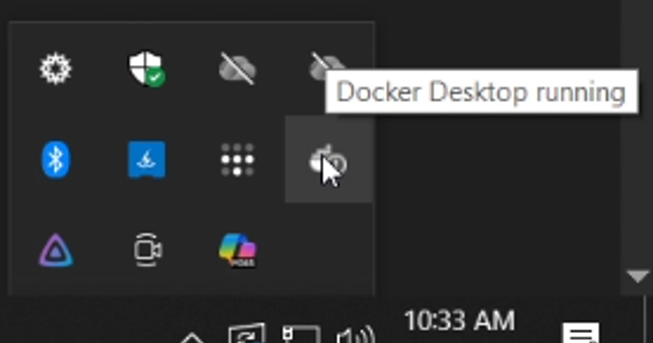
- The docker desktop icon will appear at system tray. When mouse is hovered, it will show “Docker Desktop is running”.
If you see a message about WSL 2 not being available, open “Turn Windows features on or off,” tick “Windows Subsystem for Linux,” reboot, then reopen Docker Desktop.
Step 2: Verify Docker with a tiny test container
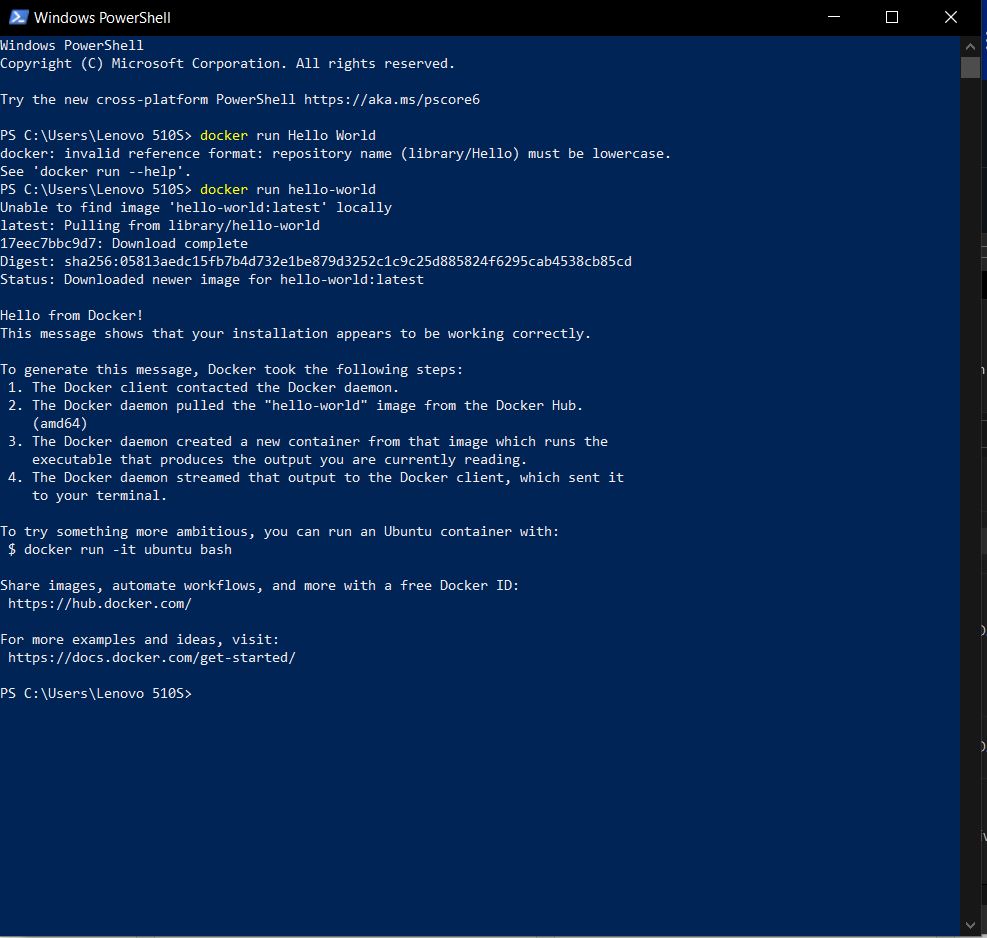
Open PowerShell and run:
docker --version
docker run hello-world
You should see a friendly message from the container. That confirms Docker is working.
Step 3: Start WordPress with Docker Compose
3.1 Create the project folder
Create a folder for this stack. You can create it from File Explorer. For example:
C:\Projects\wp-docker\3.2 Add two files: .env and compose.yml
Use .env to keep credentials and ports out of the Compose file. Replace the passwords with strong values.
.env
# .envcompose.yml
# compose.yml
name: ${PROJECT_NAME}

services:
  db:
    image: mariadb:11
    restart: unless-stopped
    environment:
      MYSQL_DATABASE: ${DB_NAME}
      MYSQL_USER: ${DB_USER}
      MYSQL_PASSWORD: ${DB_PASSWORD}
      MYSQL_ROOT_PASSWORD: ${DB_ROOT_PASSWORD}
    volumes:
      - db_data:/var/lib/mysql

  wordpress:
    image: wordpress:php8.2-apache
    depends_on:
      - db
    ports:
      - "${WP_PORT}:80"     # Open http://localhost:8080
    environment:
      WORDPRESS_DB_HOST: db:3306
      WORDPRESS_DB_USER: ${DB_USER}
      WORDPRESS_DB_PASSWORD: ${DB_PASSWORD}
      WORDPRESS_DB_NAME: ${DB_NAME}
    volumes:
      - wp_data:/var/www/html
    restart: unless-stopped

volumes:
  db_data:
  wp_data:
3.3 Bring the stack up
From the project folder, run:
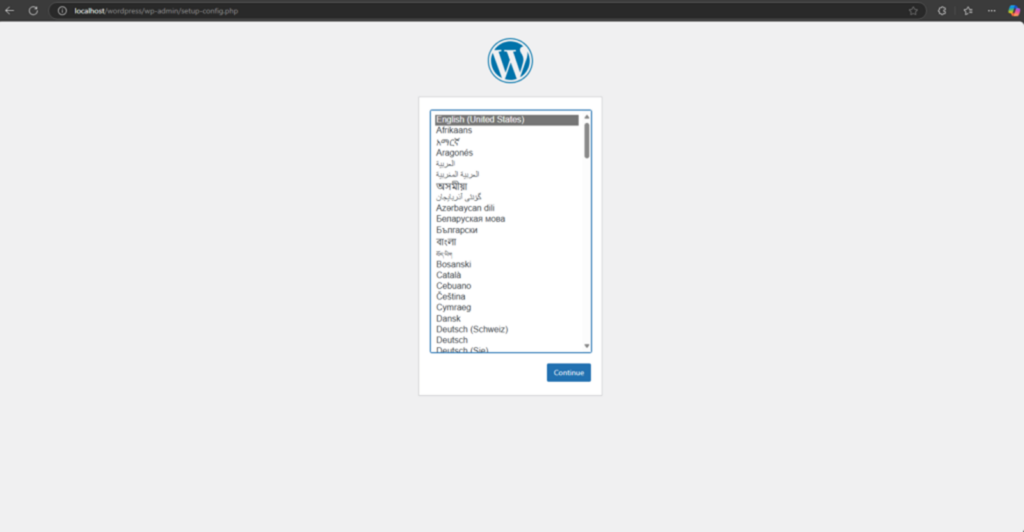
docker compose up -dOpen http://localhost:8080 and complete the WordPress setup wizard.
To stop the stack later:
docker compose down
``
Your data lives in named volumes wp_data and db_data. Stopping the stack does not remove content. If you want a clean slate, remove volumes as well:
docker compose down -vBeginner tips that help a lot
- Start with official images for WordPress and MariaDB to avoid surprises.
- Use environment variables or secrets for credentials. Avoid hardcoding passwords.
- Choose a clear folder name. Docker Compose uses it in container and network names.
- Keep track of exposed ports, for example 8080, to avoid conflicts with other tools.
Quick troubleshooting
1) Port already in use
Change WP_PORT in .env, for example set it to 8081, then run docker compose up -d again.
2) WordPress cannot connect to the database
Confirm WORDPRESS_DB_HOST is db:3306. Check logs to see what failed.
docker compose logs db
docker compose logs wordpress
3) First start takes a while
Images download the first time. Later starts are much faster.
Final thoughts
This Docker WordPress on Windows 10 setup gives you a safe test space that is easy to reset. In Part 3 I will show a quick backup and restore workflow so you can try bold changes without fear.

Leave a Reply